![Kicksite_Logo_Primary_Color.png]](https://support.kicksite.com/hs-fs/hubfs/Kicksite_Logo_Primary_Color.png?height=40&name=Kicksite_Logo_Primary_Color.png)
With Kicksite, you can have your prospects agree to a contract
To create a contract for a prospect
- Hover over Prospects and click Active Prospects
- Click the individual prospect profile you want
- Click Contracts within their prospect profile
- Under contract, click the drop down box and select the appropriate contract template
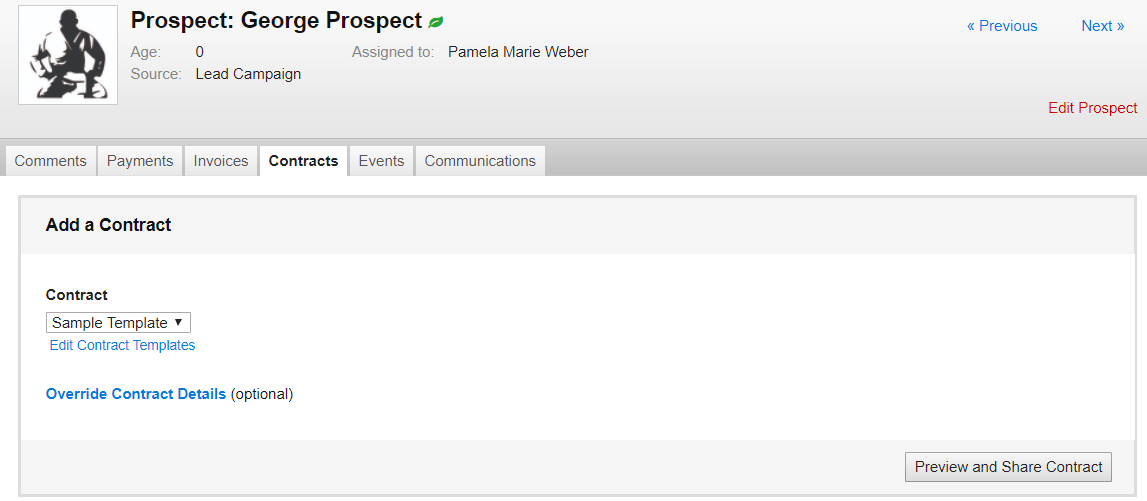
To edit contract details
5. Click Override Contract Details
6. Edit the following information
- Name
- Birthday
- Address
- Note: this override will only change the information for the contract on that individual student and will not affect the original contract template
7. Click preview and Share Contract
8. If you need to make any additional changes, click Edit Contract on the bottom right corner
9. To finalize the contract, click Save and Share

Options to share the contract with the prospect
10. Copy and paste the link into a new window for the prospect to sign while they are in front of you
11. Email a copy of the contract to the prospect for them to sign
12. Text the prospect a link that they can use to sign the contract on their mobile device
13. Print off a hard copy of the contract
14. Create a PDF of the contract

- After the contract has been created, a copy will be stored in the prospects profile.
- The contract will be updated once the prospect has added their signature.
