![Kicksite_Logo_Primary_Color.png]](https://support.kicksite.com/hs-fs/hubfs/Kicksite_Logo_Primary_Color.png?height=40&name=Kicksite_Logo_Primary_Color.png)
To add a new Student
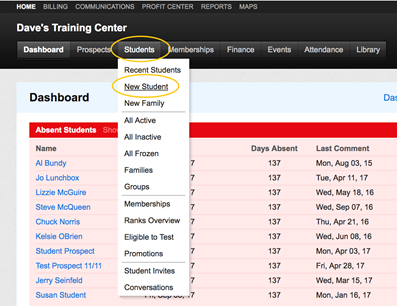
- Hover over Students tab and click on New Student
- An ID is automatically filled in, but can be changed to another number if desired
- If the number that it is changed to is unavailable, the system will say so
- A student must have a First Name and Birthday
- All other fields are optional, but a good idea to include

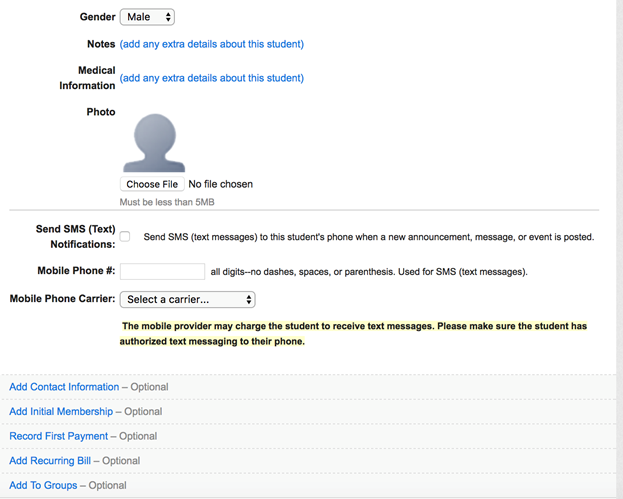
- Notes can be added about the student
- A photo can be uploaded
- To do this, the photo must be on the computer so a file can be chosen
- Text messages can sent (this will be discussed under General Announcements)
- In order for a student to have this option, the checkbox must be checked, a phone number included and the mobile carrier
- If the mobile carrier is not an option please contact Kicksite Support and let them know
To select what communications for this email
- Go into contact information in the student's profile
- Scroll down to the email addresses
- Click Select communications for this email address

To remove a student from receiving specific notifications
- Uncheck the box

Here is a video tutorial on creating a new student in Kicksite: