![Kicksite_Logo_Primary_Color.png]](https://support.kicksite.com/hs-fs/hubfs/Kicksite_Logo_Primary_Color.png?height=40&name=Kicksite_Logo_Primary_Color.png)
Creating Announcement Templates allows you to use the same format for a message over and over again.
To create a template for your General Announcement
- Click on Communications in the upper-left corner.
- Hover over the Messages menu and click on New Announcement Template.


- The Template Information is for internal use only, so your students will not see anything you type in this section.
3. Begin by typing a name for the new template in the Name field.
- This will allow you to easily locate the template after it has been created.
4. Type a description for the template in the Description field.
- This will allow you a brief overview of the purpose of this template.
5. Finally, you can add this template to an announcement category to help keep all of your announcement templates organized by typing a name in the Category field.
*NOTE: To add or manage your announcement categories list, go to the Settings menu and click on Announcement Categories.

- The next section allows you to fill out all of the information that you would like on the template.
- This will be the information that will be set in the template that you can use in future messages and follows the same format of a General Announcement.

6. After you have added all of the areas you would like to reuse, click the Save Template button at the bottom of the page.

To use an Announcement that you have created
1. Hover over the Messages menu and click on Announcement Templates.
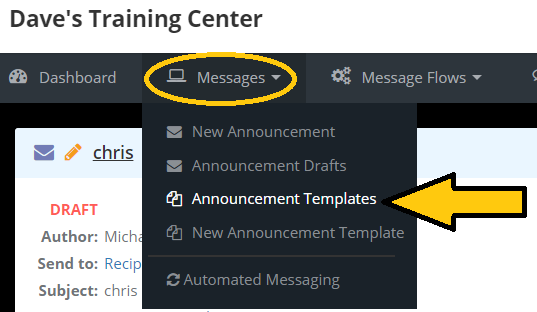
2. Simply click on the category you saved the template under, and then click on the template itself.

3. Create an announcement using this template is by clicking on the New Announcement button.
