![Kicksite_Logo_Primary_Color.png]](https://support.kicksite.com/hs-fs/hubfs/Kicksite_Logo_Primary_Color.png?height=40&name=Kicksite_Logo_Primary_Color.png)
Kicksite keeps the programs and memberships separated. Think of memberships as the time commitment or contract.
To add memberships to Kicksite
- Hover over Settings and click on Membership
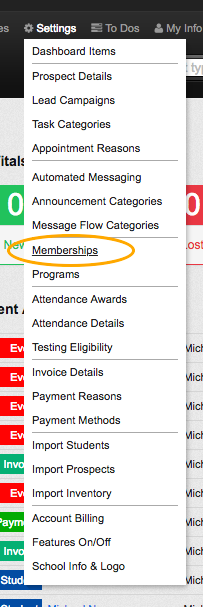
2. Scroll to the bottom and type the name of the membership in the empty text box
3. Click the Add Membership button

How to customize Memberships
- Memberships can be moved on the page into whatever order is desired by clicking and dragging the membership to the desired location
- The name of a Membership can be changed at any time by clicking on Rename
- Changing the name of a Membership will be a global change
How to add a Membership
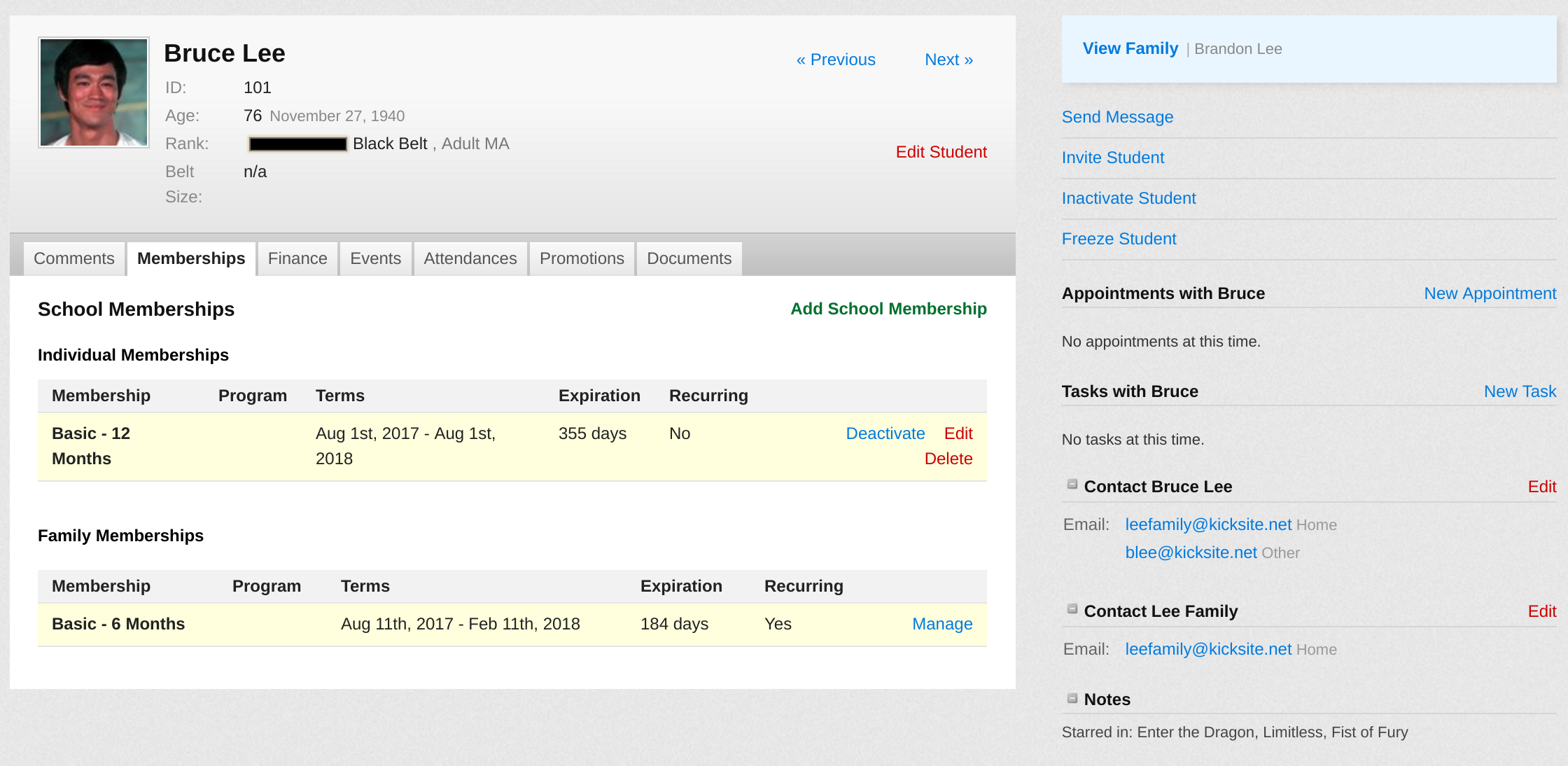
- To add a membership to a student, first click on the name of the active student
- Within their profile page, click on the Memberships tab
- Any current memberships this student has will be shown here
3. To add a membership to this student, click the Add School Membership link

Membership Expiration
- Memberships can be created by
- Date
- Attendance
- This page shows a Membership created with dates
- Kicksite recommends that if there is a month to month option, that the end date be set to an expiring date far in the future
- This keeps the user from having to update this each month and constantly seeing the same students in the Soon to Expire section on the Dashboard

Expired Memberships
- Students with past due memberships will show on the Dashboard in the Expired Memberships section and will appear throughout Kicksite highlighted in red

To find out more about the Student’s Memberships
- Click on the student name and the details will be available under the Memberships tab in his or her profile