![Kicksite_Logo_Primary_Color.png]](https://support.kicksite.com/hs-fs/hubfs/Kicksite_Logo_Primary_Color.png?height=40&name=Kicksite_Logo_Primary_Color.png)
The Student Check-in Screen allows for your students to have a fun and engaging way to log their own attendances when they arrive for class, so you can focus on teaching.
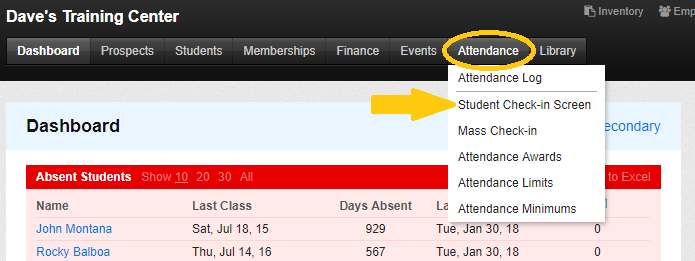
To access the Student Check-in screen
- Hover over the Attendance tab and click on Student Check-in Screen
2. Your students can begin checking themselves in before class with their Kicksite ID number
3. Kicksite also offers a keypad and touchscreen version of the Attendance Check-in page to allow you to use a computer or a tablet
4. Students will type in their ID and hit Enter
*Note*
- If the student is in only one program, the system will log their attendance immediately
- If they are in multiple programs, the system will ask which program that the student is checking in for
5. Once the student hits enter, they can see their attendance being logged as their name pops up on the top of the attendance list
- They will also be able to see their current rank (with graphics, if applicable), classes and days at that rank, and the time that they checked in
- You can set an Attendance Award for a particular program to keep your students motivated to come to class